
Working more than one job
Paycheq can track each job you work, with its own rate, rules and pay schedule. More than one job is part of Paycheq Pro.
Adding a job
- Open the Jobs tab.
- Tap + at the top right.
- Answer the setup questions for the new job: its name, rate, last cheque, union contract, tax and more.
- Tap Start tracking on the last screen.
Without Pro, tapping + when you already have a job opens the Paycheq Pro screen.
Switching between jobs
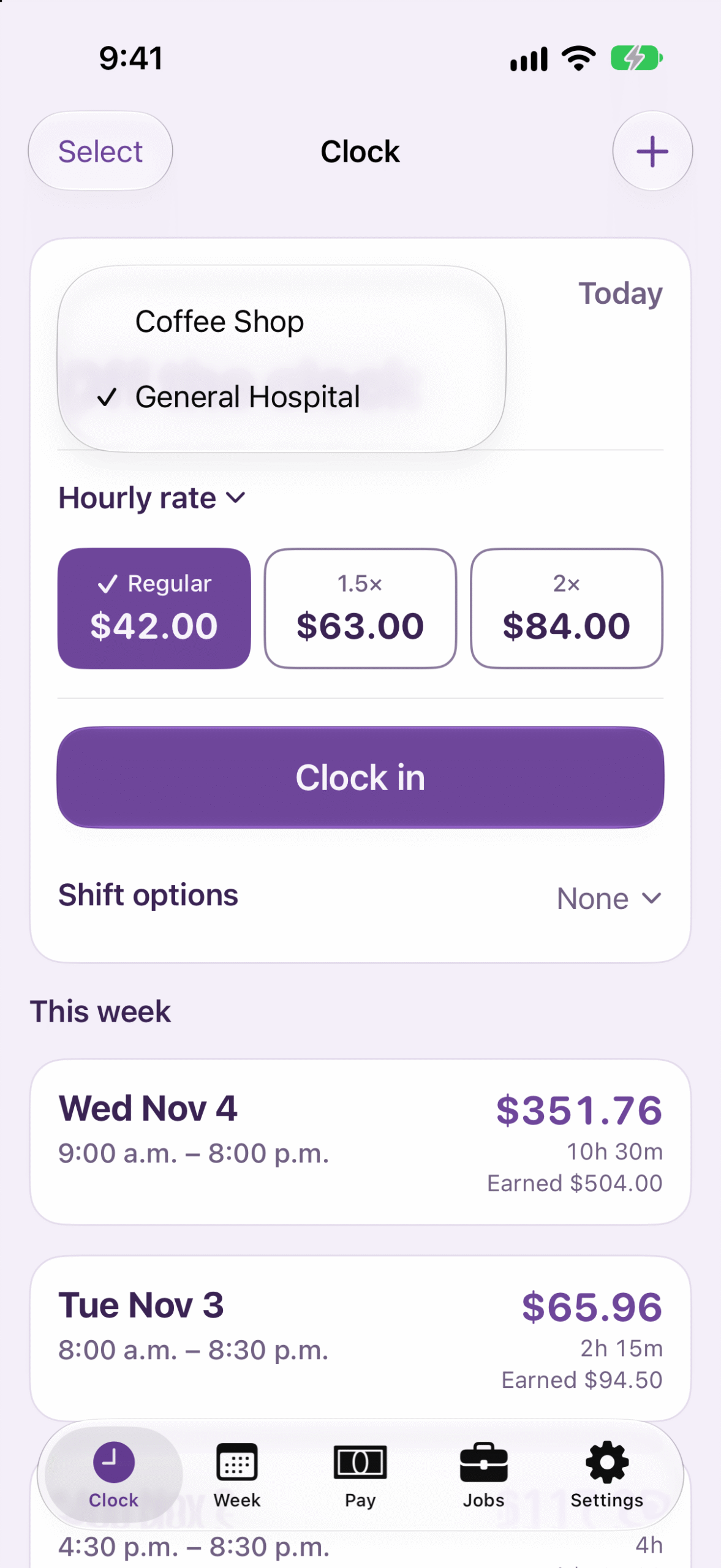
On the Clock, Week and Pay screens, tap the job name at the top left and choose the job. All three screens follow the job you pick.
Clocking in
Choose the job on the Clock screen before you tap Clock in. You can only be clocked in to one job at a time, so clock out of one before you start the other.
Each job is separate
- Each job has its own rate, other rates, pay schedule, labour rules, tax settings, union dues and contract rules.
- Each job’s tax is worked out on its own, the way each employer does it. Neither employer knows about your other job, so at tax time you may owe a little more, or get a little back.
- CPP and EI are also taken by each job separately. If you pay more than the yearly maximum across both jobs, you get the extra back when you file your taxes.
Changing, reordering or removing jobs
On the Jobs tab:
- Change a job: tap it, make your changes, and tap Save.
- Reorder jobs: tap Edit and drag them into the order you like.
- Archive a job you’ve left: swipe left and tap Archive. It disappears from your lists, and its shifts and stubs are kept in Paycheq and in your backups. To bring it back, tap Archived jobs at the bottom of Jobs, tap the job, then tap Unarchive.
- Delete a job: swipe left, tap Delete, then Delete job and its shifts. Every shift, cheque stub and setting for that job is removed from your phone.
If Pro ends
The job at the top of your Jobs list keeps working as usual. Your other jobs stay in Paycheq with all their history, marked with a lock. To clock in, add shifts or make changes to them, get Pro again.
- Next in Getting Started →Setting up your first job
- Next in Getting Started →Your pay schedule from your last cheque
- Next in Getting Started →Clocking in and out
- Next in Getting Started →Entering a shift by hand
- Next in Getting Started →Reading the Week screen
- Next in Getting Started →Clock-in and clock-out reminders
- Next in Getting Started →Working more than one job
- Next in Getting Started →Your widget and Live Activity
- Next in Getting Started →Checking your first cheque
- Next in Your pay →Reading the Pay screen
- Next in Your pay →Why your estimate can differ from your cheque
- Next in Your pay →Entering a cheque stub
- Next in Your pay →CPP and EI and the yearly maximums
- Next in Your pay →Adding pay from before you started using Paycheq
- Next in Your pay →Vacation pay
- Next in Your pay →Exporting shifts and pay summaries
- Next in Overtime and rates →The overtime window (such as midnight to 6 a.m.)
- Next in Overtime and rates →Saturday, Sunday and other day rates
- Next in Overtime and rates →Daily and weekly overtime
- Next in Overtime and rates →Shifts entered at 1.5× or 2×
- Next in Overtime and rates →The rate highlighted on the Clock card
- Next in Overtime and rates →Other rates, such as a lead rate
- Next in Overtime and rates →Raises and retro pay
- Next in Union contracts & custom rules →Setting up your contract rules
- Next in Union contracts & custom rules →The long-shift meal premium
- Next in Union contracts & custom rules →Call-out minimums
- Next in Union contracts & custom rules →How does banked time work?
- Next in Union contracts & custom rules →When more than one rule applies
- Next in Union contracts & custom rules →Working two rates in one shift
- Next in Union contracts & custom rules →Paid breaks and unpaid meal breaks
- Next in Union contracts & custom rules →Shift premiums and on-call pay
- Next in Holidays →How holiday pay works
- Next in Holidays →Your contract's own holidays
- Next in Holidays →How do my two vacation balances work?
- Next in Holidays →Holidays in Alberta
- Next in Holidays →Holidays in British Columbia
- Next in Holidays →Holidays in Manitoba
- Next in Holidays →Holidays in New Brunswick
- Next in Holidays →Holidays in Newfoundland and Labrador
- Next in Holidays →Holidays in the Northwest Territories
- Next in Holidays →Holidays in Nova Scotia
- Next in Holidays →Holidays in Nunavut
- Next in Holidays →Holidays in Ontario
- Next in Holidays →Holidays in Prince Edward Island
- Next in Holidays →Holidays in Saskatchewan
- Next in Holidays →Holidays in Yukon
- Next in Holidays →Holidays in the federal sector
- Next in Your data →Backing up and restoring
- Next in Your data →Using a flat tax percentage
- Next in Your data →Union dues
- Next in Your data →How Paycheq estimates tax
- Next in Your data →TD1 claim amounts
- Next in Your data →Your data stays on your phone
- Next in Paycheq Pro →What Paycheq Pro adds
- Next in Paycheq Pro →Restoring a purchase
- Next in Paycheq Pro →If your Pro subscription ends
- Next in Troubleshooting →My figures don't match my cheque
- Next in Troubleshooting →A backup won't restore